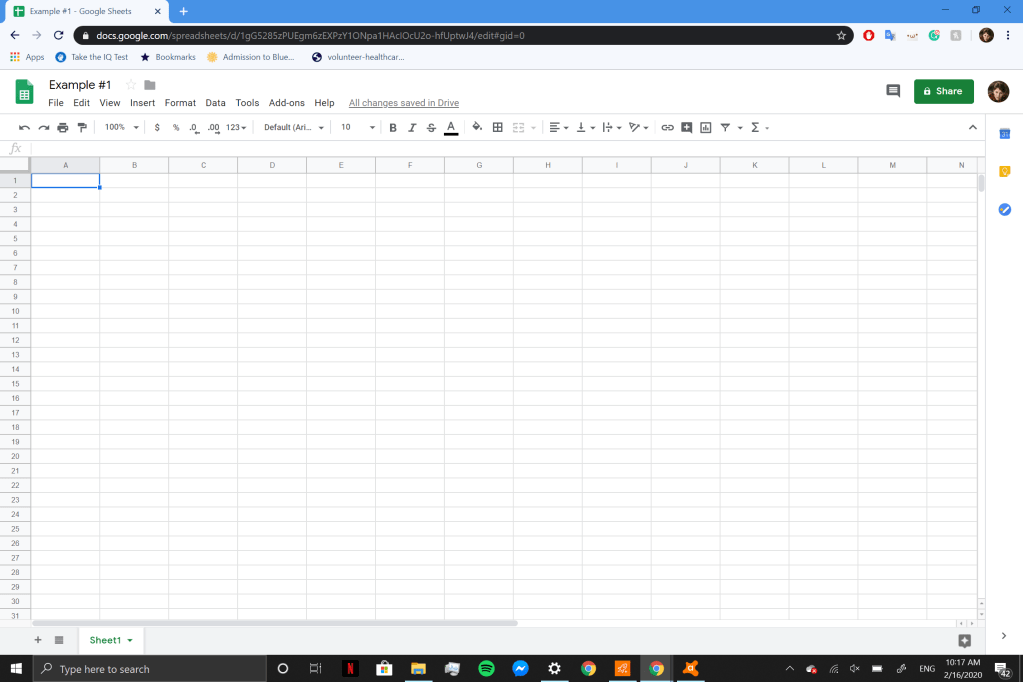
- Open a page in google sheets.
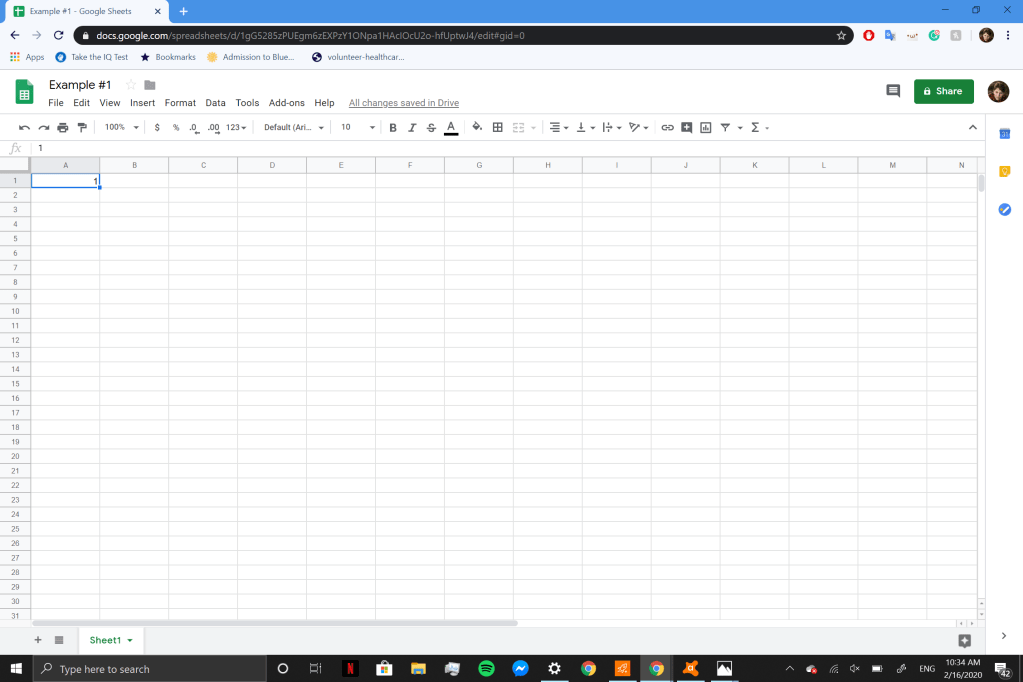
2. Create an initial value. For my example, I used “1”.
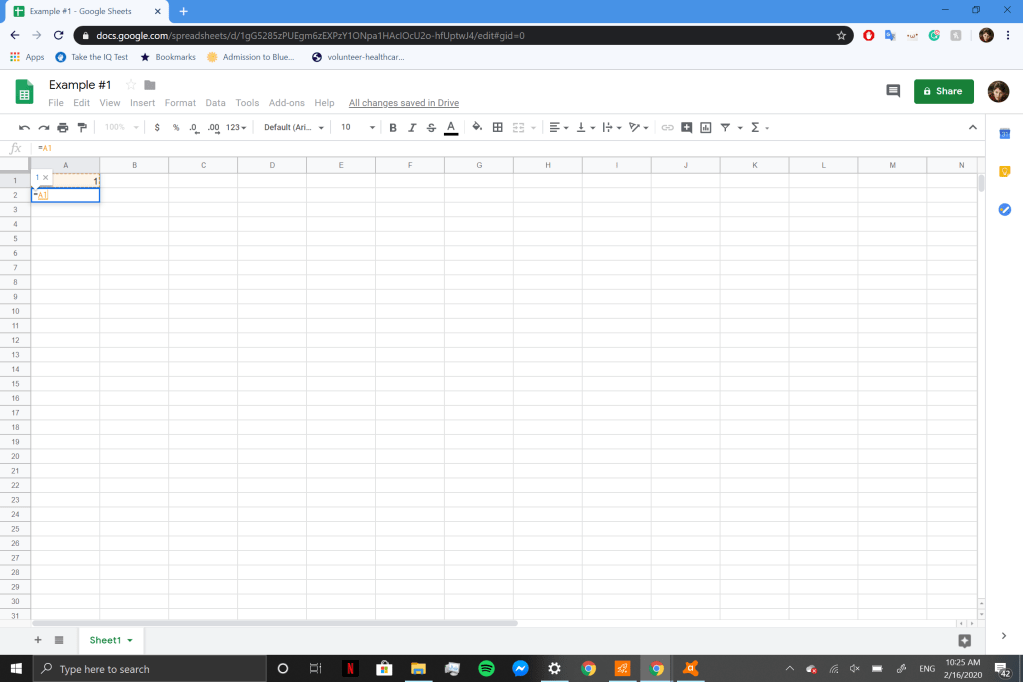
3. Next, in the box underneath, type an = sign. This tells the program that you intend to create a formula. Then, click on the box with your initial value. This creates what is known as a cell reference, your formula will always perform permutations on the box above it, so that it will self-populate when you are ready to extend your formula.
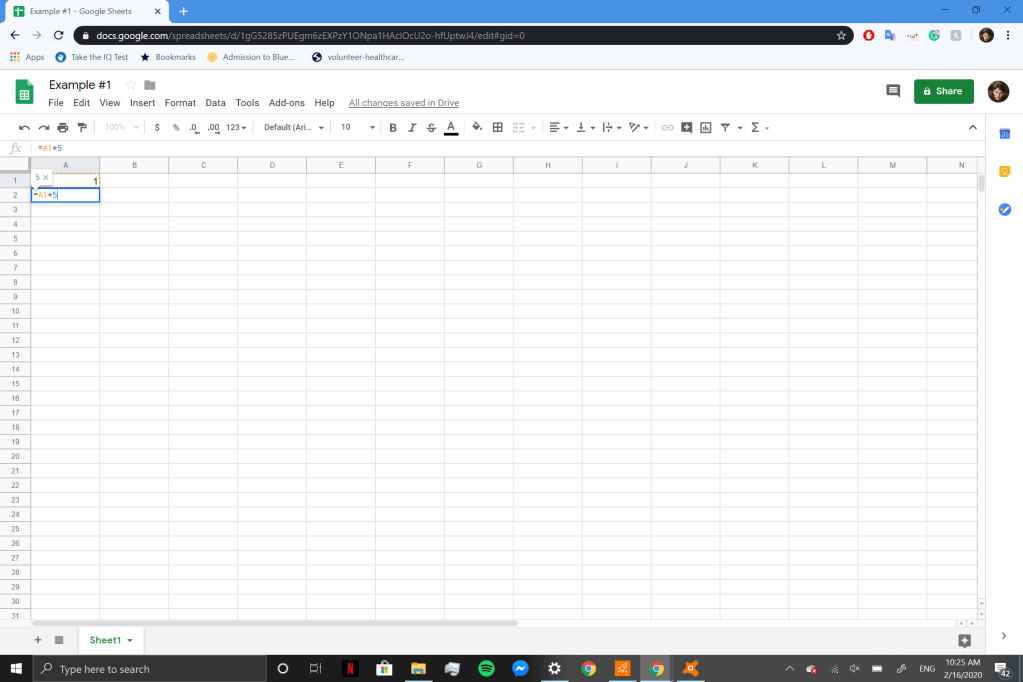
4. Now, select a change. These can be very complex, but for this basic demonstration I will be multiplying by 5.
5. Enter, and the solution to the formula will appear.
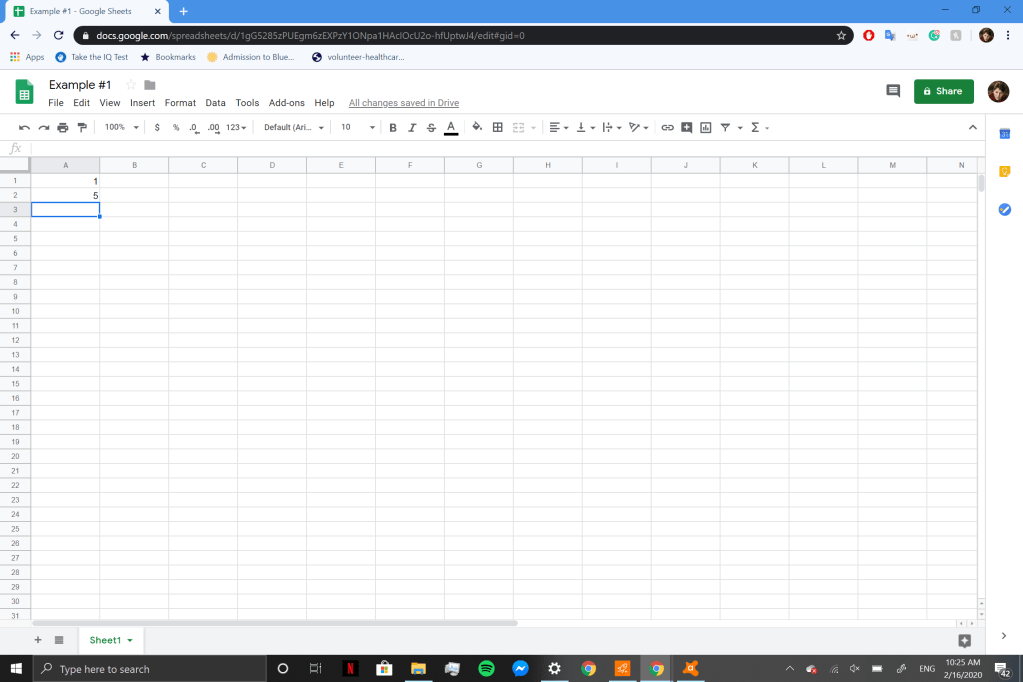
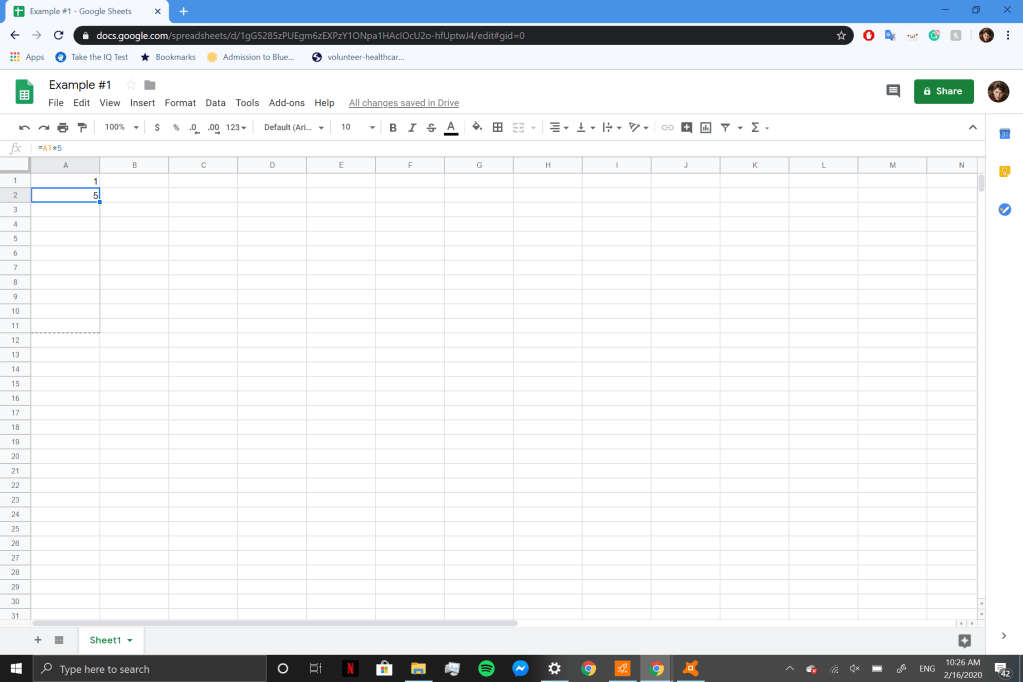
6. Now, if you want to extend and populate your formula down the sheet, click on the box where you wrote your formula. Then, click on the small blue square on the lower right corner of the box, and drag it down as far as you want, creating a grey outline.
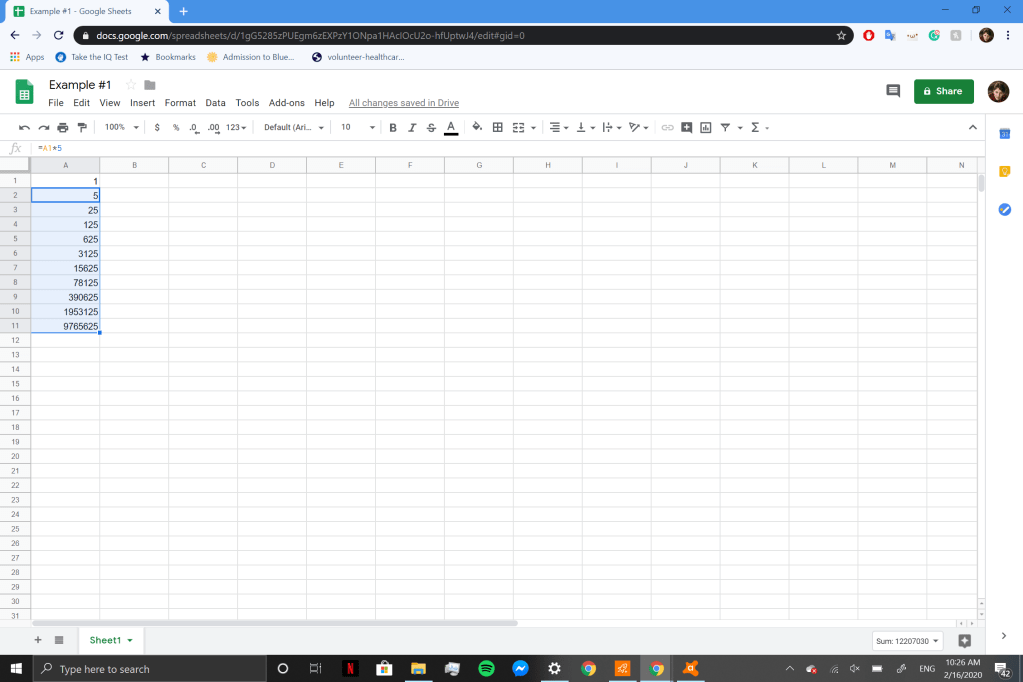
7. Release, et voila! Your sheet should populate, giving you answers with a constant rate of change.
 Harrison's Mandatory Blog